Showing posts with label GoogleDocs. Show all posts

Thursday, May 30, 2013

Goobric: Doctopus' (And Your) Best Friend

In a previous post, I explored the very handy Doctopus script and how it could be used to assign work to students, help provide individualized feedback to students, and send email notifications once the assignment has been graded.  I have learned about another extension called Goobric that helps to facilitate the grading process using a rubric that you have already created.  This is how my spreadsheet looked once my assignment was created in Google Forms and Doctopus was installed:


If you wish to use a rubric to assess your students' work, the rubric can easily be added.  The Goobric extension must be added, installed, and authorized in Chrome before you can use it.  In the Doctopus menu, you will see an option to "Attach Goobric":
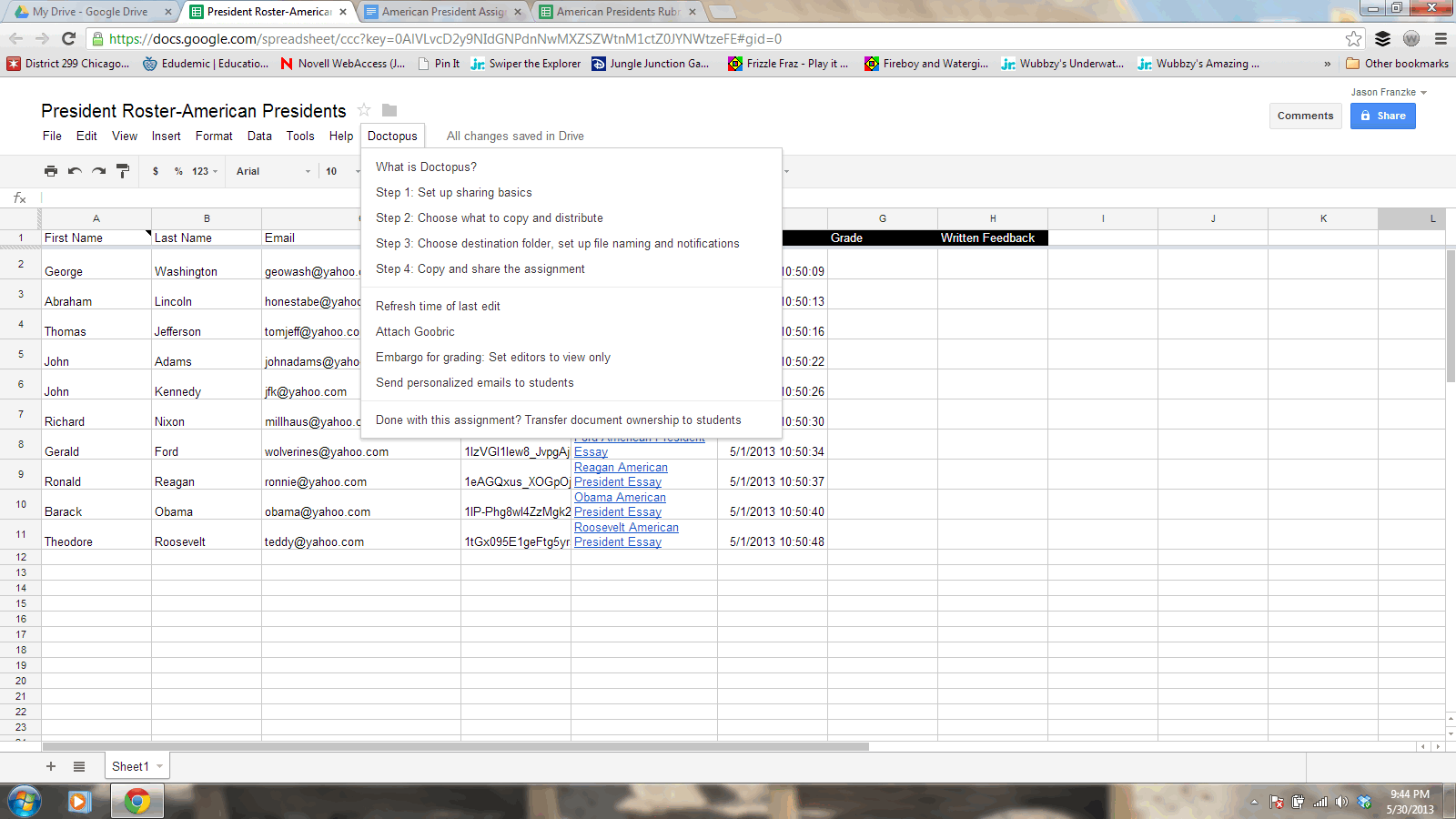


When you click "Attach Goobric", the extension will walk you through the installation and authorization process, as well as provide information about what format your rubric should be in.  You will then select a Goobric (your self-created rubric) to add to the assignment.  Here's mine:


Now, here's the neat part!  Once your self-created rubric is added via Goobric, it automatically loads the rubric into your spreadsheet:
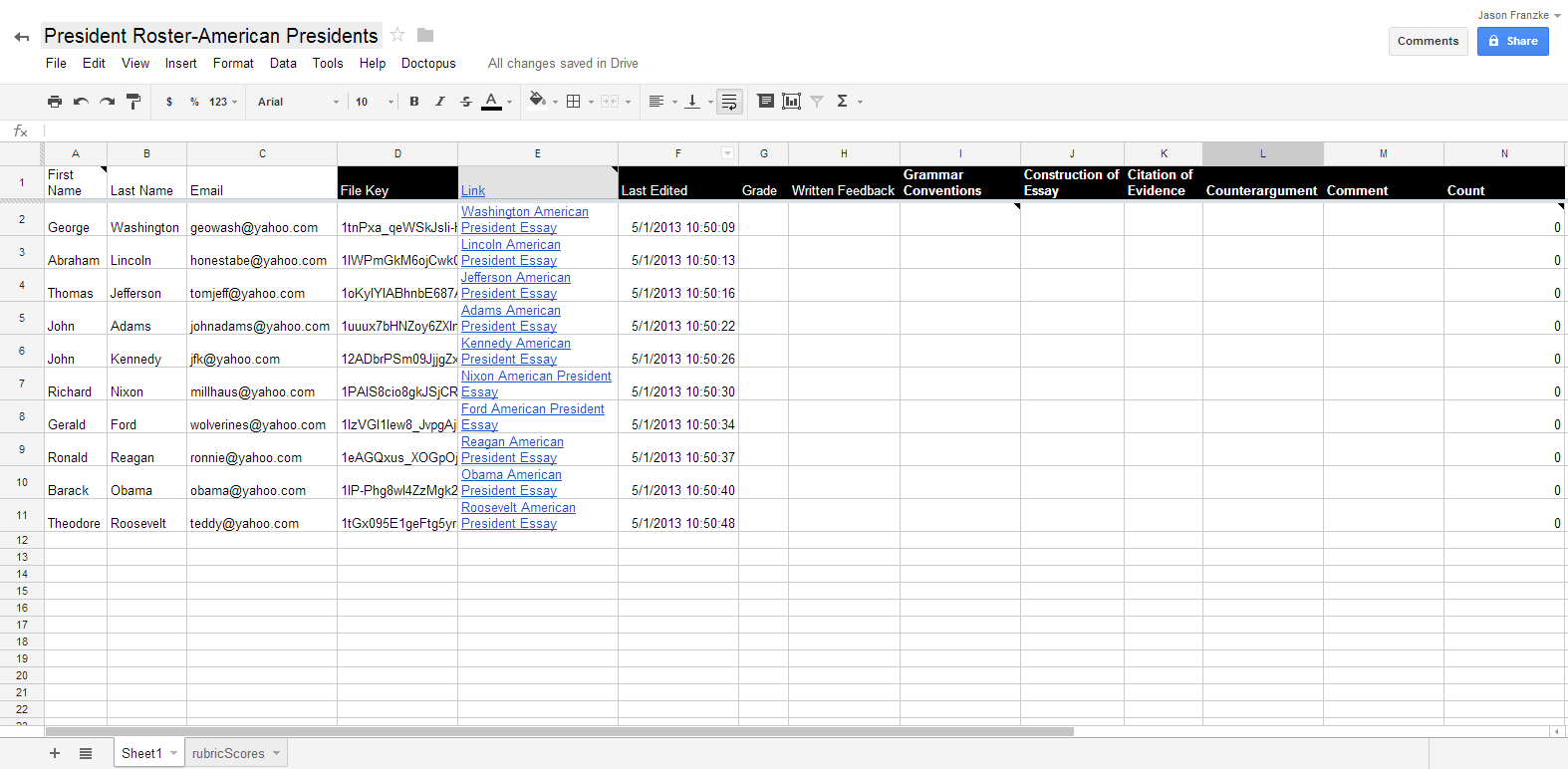


When you click on an individual student assignment and then click on the Goobric icon in the navigation bar, the rubric is loaded into the assignment, which also contains fields for entering grades:
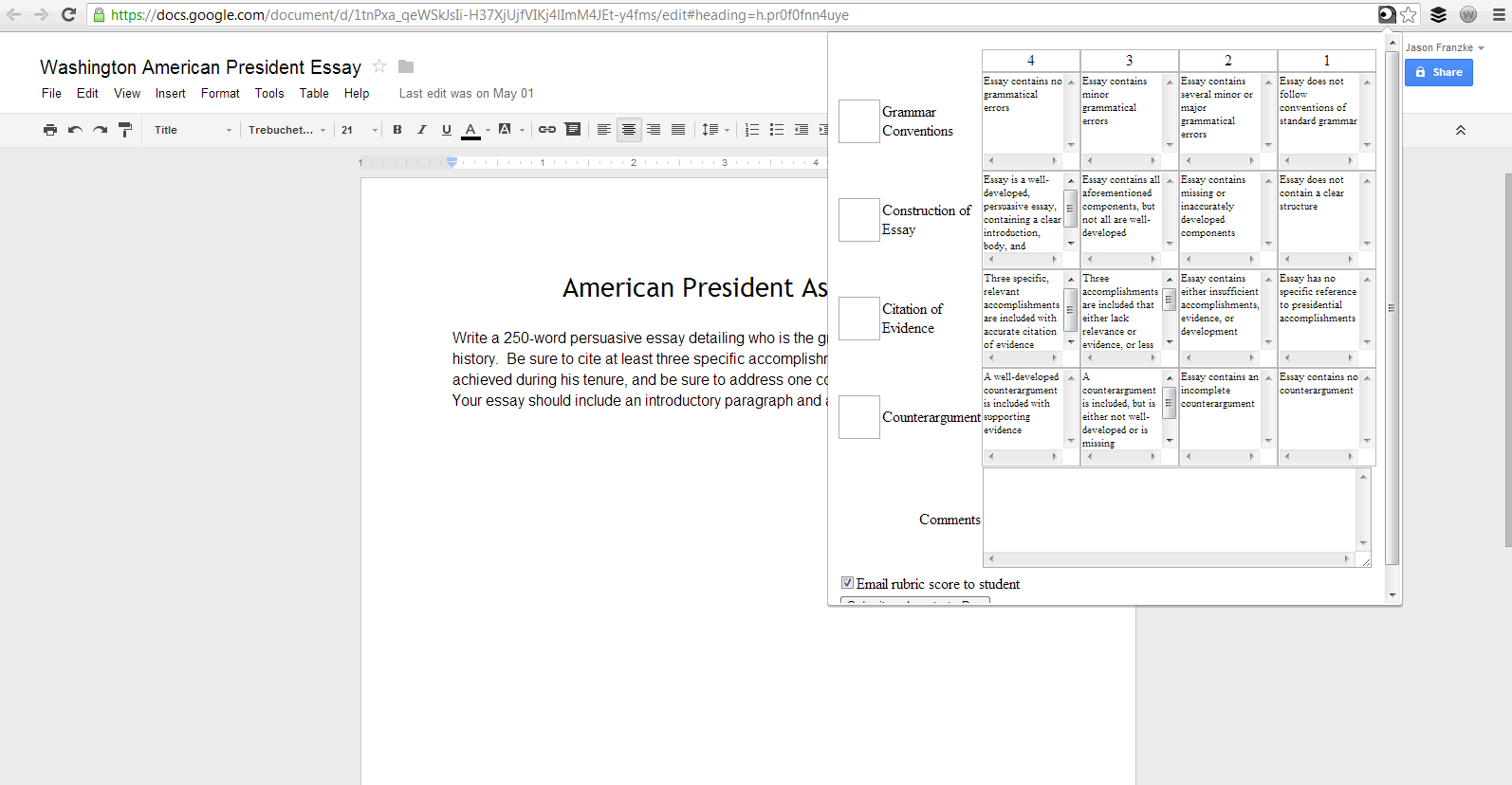


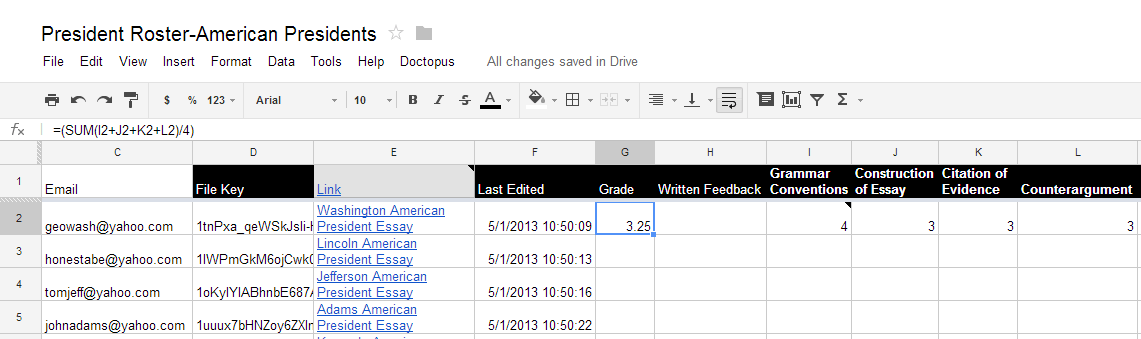
Pretty handy!  Now you can enter grades, provide comments, and send an email with the rubric score to the student.  When you enter a score in each row, the appropriate cell for that score is automatically shaded in.  Once your scores are submitted, they are saved and pasted at the end of the student assignment.  The student scores are also added to your spreadsheet, both in the original tab and in a new tab called "rubricScores".  If you like, if your rubric is equally weighted, you can also easily add a formula into your Google Spreadsheet to take an average of the scores that were issued and calculate the overall student grade.  Here I've added that formula into the "Grade" column:


Have fun with Doctopus and Goobric!  They are truly great tools that help with organization, grading, and communication.  How have you used them thus far?


Wednesday, May 1, 2013

Doctopus

In a previous post, I explored the script Flubaroo and how it streamlines assessment creation and grading in Google Docs.  Flubaroo and Doctopus were both buzzwords that I initially heard about from other tech friends.  They seemed like things I should learn and know about, so at a recent conference I attended a session on Google Docs and the Common Core presented by Mark Fijor.  At the session, I learned enough about Doctopus to know that I needed and wanted to know a lot more.  I finally had a chance to explore a bit with Doctopus and see just how helpful it can be in distributing, collecting, and organizing content in Google Docs.


So what is Doctopus and how do you get started?  Doctopus is a script that can be added to a spreadsheet in Google Docs that can help you assign work to students and send email notifications to students with your grades and personalized feedback.  The first thing you'll need to do is create a class roster (with emails for notification) in a spreadsheet in Google Docs:


  Create your assignment in Google Docs.  Create a copy of your class roster spreadsheet (preferably with the assignment name in the title:)


Next, create a folder with the name of the assignment.  Now, you are ready to insert and install Doctopus:


Once installed, Doctopus will walk you through four steps to get set up.  Step 1 establishes how to want to share your assignment: groups, individually, individually but differentiated, or whole class:


Step 2 prompts you to choose what to copy and distribute by identifying the file you want to share, which is preferably stored in assignment folder.  Step 3 asks you to choose your destination folder and to set up file naming and notifications.  If you have set up a folder already (in a previous step) simply use that folder name for your assignment, and establish naming convention for the submitted student assignments, e.g., Student Last Name + Title, etc.  There is also a prompt for the email notification subject line and a personalized note to include with the email message.

Step 4, the last step, reviews your settings and gives an overview of notification email.  When you click "Run Copy and Share", the Doctopus script runs, and the spreadsheet opens with links to the students' work, when it was last edited, and adds columns to populate grades and individualized feedback that can be emailed to students.  You can also attach a Goobric rubric to the assignment (which I will probably investigate in greater detail in a future post.)  As a way of visually summarizing all of this information, I created the following semi-flowchart in the Explain Everything app:

I am definitely excited about sharing Doctopus with my staff.  It seems as though what Flubaroo was to multiple-choice and true-false assessments, Doctopus is to extended- and constructed-response assessments, as well as a valuable tool for Google Docs organization!

Tuesday, April 23, 2013

Flubaroo

In looking ahead to the 2013-2014 school year, I still find one very large and expensive item remaining from my teachers' initial needs assessment/wish list for their classrooms from this past school year: a teacher laptop for every classroom.  Laptops come in all shapes and sizes, different models and features, and with all sorts of bells and whistles.  As I explored, I discovered Chromebooks, which seem like a very attractive option for a number of reasons.  The Samsung Chromebook tops out at $249, meaning I can obtain one for each classroom very inexpensively.  The options for collaboration through Google are exceptional, and everything is backed up to Google Drive.

So what's the tricky part?  No Windows operating system.  No Microsoft Office!

Enter Google Docs.


Google Docs, where you can create an assignment or assessment in Google Forms, have the responses load into a separate spreadsheet, and use a script named Flubaroo to grade the assignments, generate reports, and email results to students and/or parents!  The following video provides a concise and effective overview of the features of Flubaroo:


Flubaroo actually saves the teacher significant time in grading and provides multiple options for data use.  It functions flawlessly with multiple-choice and true-false questions.  Open response questions are trickier.  For example, if the correct answer to a question is "6," a student response of "six" will be marked as incorrect.  Similarly, if the correct answer to a question is "George Washington," any variation on spelling and/or grammatical conventions will also result in a wrong answer.  Perhaps that's a risk we're willing to accept, but forewarned is forearmed.  In the meantime, I am eager to share this tool with my teachers!  I think it will make our work a bit lighter and potentially even more effective.